Paper notebooks are simple, dependable, and satisfying to use. Their main weakness becomes apparent several months later, when an important idea is buried in the wrong notebook, a meeting page cannot be found, or an entire stack must be carried between home and the office.
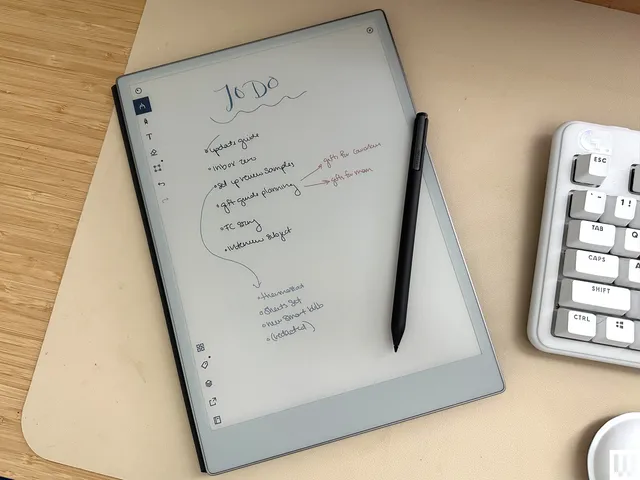
A digital note-taking tablet preserves much of the freedom of handwriting while adding folders, search, cloud synchronization, document annotation, and effectively unlimited pages. Some models are deliberately distraction-free, while others run conventional applications and can replace several devices.
The most important decision is whether you want an E Ink notebook or a full-color LCD tablet. E Ink devices provide a paper-like, sunlight-readable display and long battery life, but refresh more slowly. An iPad offers smoother performance and a richer app ecosystem, although its bright screen, notifications, and shorter battery life create a less paper-like experience.
Digital Note-Taking Tablets Compared
| Device | Ideal use | Display | Storage | Important consideration |
|---|---|---|---|---|
| reMarkable Paper Pro | Focused writing and PDF review | 11.8-inch color digital paper | 64GB | Some cloud features require Connect |
| Kindle Scribe Colorsoft | Reading, notebooks, and book annotation | 11-inch color paper-like display | Varies by configuration | Designed around Amazon’s ecosystem |
| Supernote Manta | Structured handwritten knowledge | 10.7-inch monochrome E Ink | 32GB plus microSD expansion | No front light; pen sold separately |
| BOOX Note Air5 C | E Ink with Android applications | 10.3-inch color E Ink | 64GB plus microSD expansion | More capable but more complex |
| Apple iPad Air | Notes, media, creative work, and productivity | 11- or 13-inch Liquid Retina | Varies by configuration | Apple Pencil is an additional purchase |
reMarkable Paper Pro: A Focused Digital Notebook
The reMarkable Paper Pro is designed for people who want the simplicity of paper without the distractions of a conventional tablet.
Its 11.8-inch Canvas Color display provides enough room for meeting notes, diagrams, planners, and full-size documents. The adjustable reading light makes it usable in dark rooms, while the low-glare display remains visible outdoors. It includes 64GB of storage and a compatible reMarkable Marker.
Writing tools allow you to select different pen styles and colors, move handwritten content, resize selections, undo mistakes, create layers, and organize documents with folders and tags. You can also annotate PDFs and convert handwriting into typed text.
The restrained software is one of the Paper Pro’s greatest strengths. There are no social-media applications competing for attention. However, buyers should understand the optional Connect subscription. Core writing works without it, but unlimited cloud storage, handwriting search, extended synchronization, integrations, and certain desktop or mobile features may require Connect.
Choose the Paper Pro if: You want a large, focused writing surface and regularly review PDFs, meeting documents, or reports.
Kindle Scribe Colorsoft: Reading and Writing in One Device
The Kindle Scribe Colorsoft combines an 11-inch color display with a built-in notebook and Amazon’s extensive Kindle reading ecosystem.
The included Premium Pen requires no charging. You can create notebooks, convert handwriting into text, summarize notes, import documents from supported cloud services, and export notebooks to Microsoft OneNote. Amazon’s Active Canvas feature also allows notes to be added within supported Kindle books while keeping them connected to the relevant passage.
Color is useful for highlighting, diagrams, planners, and separating categories of notes. As with other color electronic-paper devices, however, colors appear more subdued than they do on an iPad or laptop. That is part of the trade-off for a glare-resistant display designed for prolonged reading.
The Scribe is the logical choice for someone whose paperless workflow combines extensive reading with handwritten notes. It is less appealing if you need a broad selection of third-party productivity applications or sophisticated file management outside Amazon’s ecosystem.
A Kindle Unlimited subscription is not required to use the notebook, although access to books and other reading material depends on what you purchase, borrow, or subscribe to separately.
Choose the Kindle Scribe Colorsoft if: Reading is as important as writing and you already use the Kindle ecosystem.
Supernote Manta: Built for Long-Term Handwritten Knowledge
The Supernote Manta takes a particularly thoughtful approach to digital handwriting. Its note-management tools are designed to help users build connections between pages rather than simply producing an electronic stack of notebooks.
The Manta has a 10.7-inch, 300-ppi monochrome E Ink display with a flexible construction and a textured FeelWrite surface. Supernote’s ceramic pen nibs are designed not to require routine replacement, although the pen must be purchased separately when configuring the device.
Notes can be organized with headings, links, keywords, and other navigational tools. This makes the Manta attractive to researchers, writers, project managers, and students who regularly return to older notes.
Its modular design is another important distinction. The 3,600mAh battery is replaceable, the motherboard is designed to be upgradeable, and storage can be expanded from the built-in 32GB using a microSD card of up to 2TB.
The main compromise is the absence of a front light. You must provide sufficient room lighting, just as you would when using a paper notebook. The display is also monochrome, so it is not the right choice for anyone who relies heavily on color coding.
Choose the Supernote Manta if: You value handwriting, repairability, structured note organization, and long-term ownership more than color or nighttime illumination.
BOOX Note Air5 C: E Ink with Android Flexibility
The BOOX Note Air5 C sits between a focused electronic notebook and a general-purpose tablet. It uses a 10.3-inch Kaleido 3 color E Ink display but runs Android 15 with access to the Google Play Store.
This means you can install compatible reading, cloud-storage, email, calendar, and productivity applications. The device also supports split-screen use, allowing you to read a document on one side while taking notes on the other.
The display provides 300-ppi resolution for black-and-white content and 150-ppi resolution for color. It includes adjustable warm and cool front lighting, 6GB of RAM, 64GB of internal storage, and microSD expansion up to 2TB. The BOOX Pen3 is included and supports pressure sensitivity and tilt.
The Note Air5 C is more versatile than most dedicated notebooks, but that flexibility introduces complexity. E Ink does not refresh like an LCD, so conventional Android applications may show ghosting, muted colors, or less fluid scrolling. BOOX provides refresh and display controls, but users may need to adjust these settings for different applications.
Its ability to install applications can also undermine the distraction-free experience that attracts people to digital paper. If you install email, chat, news, and social apps, the device can become another notification screen.
Choose the Note Air5 C if: You want the comfort of E Ink but cannot work within the restricted software of a dedicated notebook.
Apple iPad Air: The Most Versatile Paper Replacement
The current Apple iPad Air is available with an 11- or 13-inch Liquid Retina display and supports Apple Pencil Pro as well as Apple Pencil USB-C.
Unlike an E Ink notebook, the iPad can run full-featured applications for handwriting, document scanning, PDF annotation, illustration, video calls, spreadsheets, presentations, and project management. Popular note-taking applications can combine typed text, handwriting, audio, photographs, links, and imported documents on the same page.
Apple Pencil Pro adds pressure sensitivity, tilt support, hover, haptic feedback, tool switching, and other creative controls. It attaches and charges magnetically on compatible iPad Air models.
The iPad Air is the strongest option when “going paperless” means much more than replacing notebooks. It can scan receipts, sign documents, edit presentations, join meetings, and serve as a portable workstation with an optional keyboard.
The trade-offs are equally clear. The bright LCD display is less paper-like, battery life is shorter than typical E Ink devices, and notifications can interrupt focused work. The Apple Pencil, keyboard, case, note-taking apps, and additional cloud storage may all increase the total cost.
Choose the iPad Air if: You need one device for handwriting, applications, creative work, media, and general productivity.
E Ink or LCD: Which Display Is Right?
Choose E Ink when:
- You spend several hours reading or writing.
- You want a low-glare screen that works outdoors.
- Long battery life is important.
- You want fewer notifications and distractions.
- Your work primarily involves handwriting, books, and documents.
Choose an LCD tablet when:
- You need smooth scrolling and video playback.
- You work with photographs or accurate, vibrant colors.
- You rely on specialist applications.
- You want advanced multitasking and keyboard support.
- You need one device for notes and general computing.
Hidden Costs to Check Before Buying
The advertised tablet price may not represent the complete setup. Before ordering, determine whether the stylus, replacement nibs, folio, keyboard, charger, cloud service, or note-taking application is included.
The reMarkable and Kindle packages include compatible pens in common configurations, while the Supernote Manta pen is normally selected separately. Apple Pencil is also an additional purchase. BOOX includes its Pen3 with the standard Note Air5 C package, although bundles may vary by region.
Cloud services deserve similar attention. A tablet may work perfectly offline but require a subscription for unlimited synchronization, collaboration, additional storage, handwriting search, or premium AI tools.
How to Build a Paperless Note System
- Create an inbox: Put new, unclassified notes in one folder instead of creating a new notebook for every thought.
- Use consistent names: Start meeting-note titles with the date, project, and subject.
- Create a small folder structure: Organize by active projects and responsibilities rather than creating dozens of nested folders.
- Tag important material: Use tags for decisions, action items, reference information, and follow-ups.
- Review notes weekly: Move tasks into your task manager and archive completed project material.
- Test exports: Make sure notes can be exported into a widely readable format such as PDF.
- Maintain a backup: Confirm synchronization is actually working before discarding original documents.
Privacy and Workplace Considerations
Handwritten notes can contain customer information, financial data, health details, passwords, or confidential business discussions. Before uploading workplace documents to a personal tablet or cloud service, check your employer’s information-security policy.
Enable a device passcode, use multi-factor authentication for the associated account, and review which services receive your documents. If AI transcription or summarization is available, determine whether processing occurs locally or sends content to an external service before using it with sensitive material.
Frequently Asked Questions
Can a digital note-taking tablet completely replace paper?
For daily notes, planners, reading, and document annotation, it often can. Paper may still be preferable for disposable notes, formal documents requiring specific signatures, or environments where electronic devices are restricted.
Does color E Ink look like an iPad display?
No. Color electronic paper typically looks closer to printed newspaper or muted colored pencil. Its advantages are low glare, sunlight readability, and lower power consumption rather than bright, saturated color.
Can handwritten notes be converted into text?
Most leading note-taking tablets provide handwriting conversion, but accuracy depends on language support, handwriting clarity, page structure, and the software used. Always proofread converted text.
Do I need a monthly subscription?
Not always. Core writing normally works without one, but synchronization, cloud storage, integrations, premium applications, or AI features may involve ongoing charges. Review the complete service terms before choosing a device.
Final Recommendation
The reMarkable Paper Pro is the strongest choice for focused writing and document review, while the Kindle Scribe Colorsoft is better for people who divide their time between books and notebooks. The Supernote Manta stands out for structured knowledge management and repairable hardware.
Choose the BOOX Note Air5 C when you need Android applications on a more comfortable E Ink screen. Select the iPad Air when your paperless workflow includes scanning, illustration, presentations, video calls, and applications beyond note-taking.
The right tablet should not merely replace a stack of notebooks. It should make your ideas easier to find, organize, protect, and use. Test its export and backup workflow early—before the only copy of an important decision exists inside one device or proprietary account.